
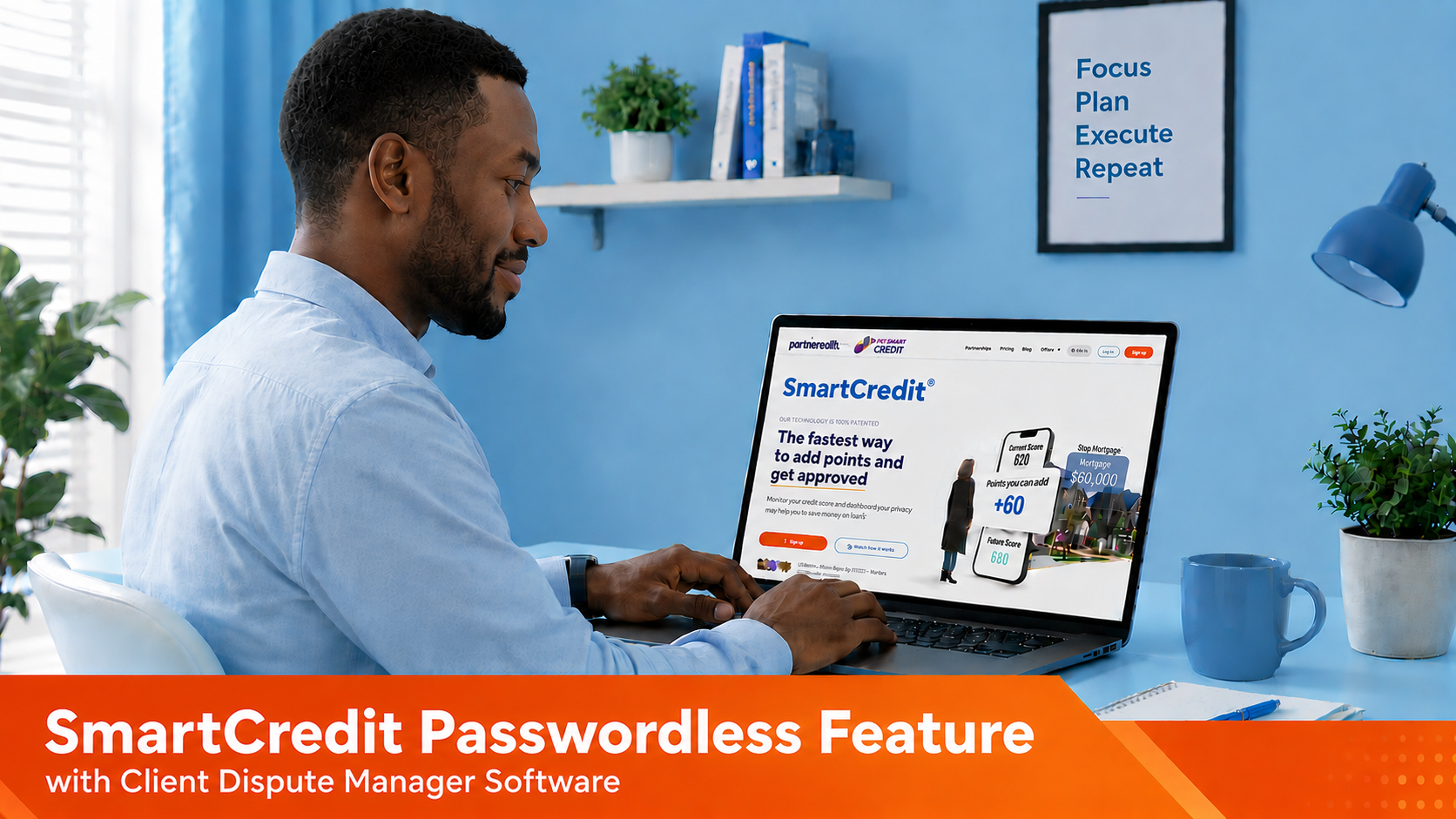
 This feature allows you to retrieve credit reports directly through the Client Dispute Manager Software without requiring your customers to provide their login credentials. By establishing a direct API connection, you can bypass the manual entry of emails and passwords for every new signup.
Why Use SmartCredit Passwordless Imports?
- One-Time Setup: Enter your API and Secret Keys once and eliminate repetitive data entry.
- Remove Friction: No more waiting for customers to send login details or reset forgotten passwords.
- Continuous Access: Retrieve reports even if a customer changes their password or loses access to their account.
- Enhanced Security: Securely pull data via encrypted keys rather than handling individual login credentials.
- Efficiency: Save hours of administrative time during the onboarding process.
PHASE 1: GENERATING YOUR CREDENTIALS
You can retrieve your API and Secret Keys through either the Partner Hub or SupportLink.
Important: Your Secret Key will only be displayed once. Copy and save it in a secure location immediately. You can always reset it in your SmartCredit Account.
Option A: Partner Hub
1. Visit partnerhub.consumerdirect.com and log in.
2. Select the Client Manager tab from the left-hand sidebar.
3. Click Integrations located underneath the Client Manager menu.
4. On the Key Generation page, click Generate Keys in the top-right corner.
5. Copy your Client Key and Client Secret.
Option B: SupportLink
1. Visit supportlink-plus.consumerdirect.app and log in.
2. Click your Profile icon in the bottom-left corner.
3. Select Partner Keys from the pop-up menu.
4. On the Key Generation page, click Generate Keys in the top-right corner.
5. Copy your Client Key and Client Secret.
PHASE 2: GENERATING YOUR CREDENTIALS
Once you have your keys, follow these steps to enable the integration:
1. Log into your software and click Company on the left-hand sidebar.
2. Select Credit Monitoring from the sub-menu.
3. Scroll down to the Passwordless Feature section.
4. Select SmartCredit as your provider.
5. Enter your API Key and Secret Key, then click Save.
The software will now automatically use these credentials to pull reports for any customer with an active account.
Troubleshooting SmartCredit Passwordless
If SmartCredit Passwordless has already been set up but you are unable to access or import a customer's credit report, check these three common issues.
API Key or Secret Key Is Incorrect
SmartCredit Passwordless requires a valid API Key and Secret Key. The connection can fail if either key—or both keys—are incorrect.
Double-check the keys saved in the software. If necessary, generate new keys and copy and paste them carefully into Client Dispute Manager.
Customer Email Address Is Not Found
The customer's email address must be associated with your connected SmartCredit Passwordless account.
Verify that the email address saved for the customer in Client Dispute Manager matches the email associated with the customer in SmartCredit. Also check for spelling errors or a different email address being used.
Customer Does Not Have a 3-Bureau Credit Report
SmartCredit Passwordless requires the customer to have access to a 3-bureau (3B) credit report for the report to be imported successfully into Client Dispute Manager.
If the customer does not have the correct 3-bureau report or plan, the Passwordless import may fail.
Recommended Steps
Check the customer's SmartCredit account.
Confirm that the customer has access to a 3-bureau credit report.
Make sure all three bureaus—Equifax, Experian, and TransUnion—are available.
If the customer does not have the required 3-bureau report, have them contact SmartCredit or update their account as needed.
Once the 3-bureau report is available, try importing the credit report again.
Customer Has an Unsupported SmartCredit Status
The Passwordless connection may fail if the customer's SmartCredit status is:
Registrants, Suspends, Closed-Pending, or Closed.
Check the customer's status in SmartCredit. If one of these statuses is displayed, the SmartCredit account will need to be addressed before attempting to use Passwordless again.
Once you have checked these items, try accessing or importing the customer's credit report again.
Special Case: SmartCredit Report Still Will Not Import
If the customer has an active SmartCredit account and a plan that includes a 3-bureau credit report, but the report still will not import, check the following:
Confirm the customer can log in to SmartCredit.
Confirm the full credit report opens normally.
Confirm the customer's plan includes a 3-bureau report.
Complete the other SmartCredit Passwordless troubleshooting steps.
If everything looks correct but the report still will not import, have the customer contact SmartCredit Customer Service and ask them to verify that the full credit report is available and working properly.
Once SmartCredit resolves the issue, try importing the report again in Client Dispute Manager.
FREQUENTLY ASKED QUESTIONS:
Q: What happens if I already have old credentials saved?
A: Once the API and Secret Keys are stored, the software defaults to the passwordless method; original credentials will no longer be used.
Q: What if I don't have any credentials saved for a client?
A: The system will automatically use your master API and Secret Keys to attempt the pull.
Q: What if the customer's account is suspended?
A: If the account is cancelled or suspended at the source, you will receive a notification within the software and the pull will fail.
Comments
0 comments
Article is closed for comments.