
Introduction to the Single Dispute Authorization Signature feature
We’ve expanded the Dispute Authorization Signature feature to make it even easier for you to collect the required authorization from your clients. With this new update, you can now request a digital signature from existing clients who did not sign during auto sign-up or who joined your business before this feature was introduced.
This update gives you complete flexibility and helps you stay compliant without extra steps or additional paperwork. Instead of asking clients to redo onboarding or sign a new contract, you can now send them a simple one-page Digital Authorization Signature Form that takes less than a minute for them to complete.
⭐You’ll be able to choose between:
- Sending a single signature request to an individual client
- Sending bulk signature requests to all clients who still need to provide authorization
Once clients complete the form, their signature will be automatically stored inside their profile — keeping your workflow clean, organized, and fully compliant.
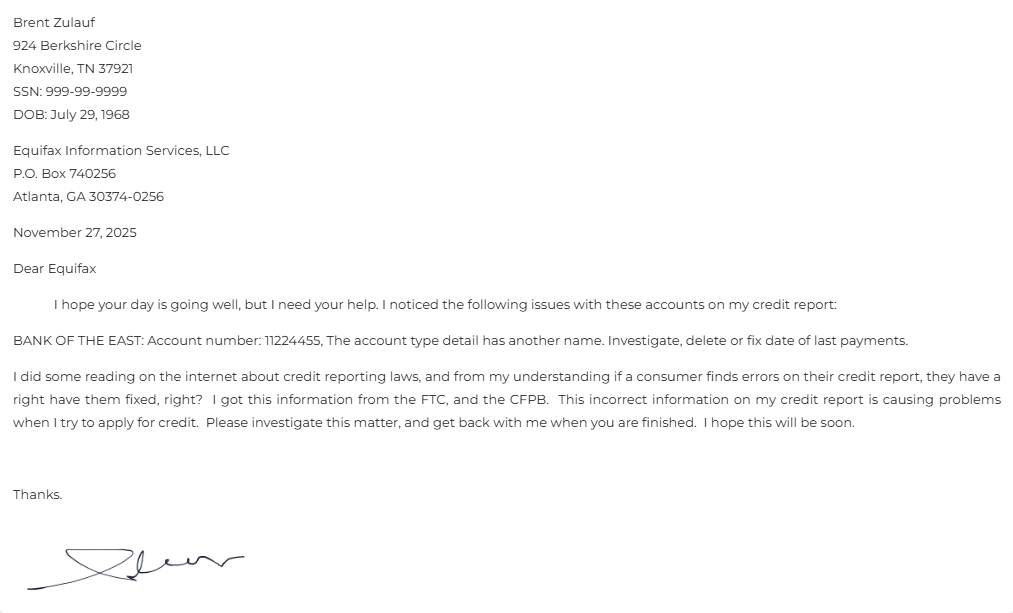
How does this feature work?
Here are the steps on how you can use this feature.
Single Email:
1. Go to the customer screen and search for the customer you are working on.
2. Click on the send email icon and under the Manual Emails tab, you will find the Dispute Authorization Signature email that you can send to your customers
👉 You can also send an email from the customer information screen
Bulk Email:
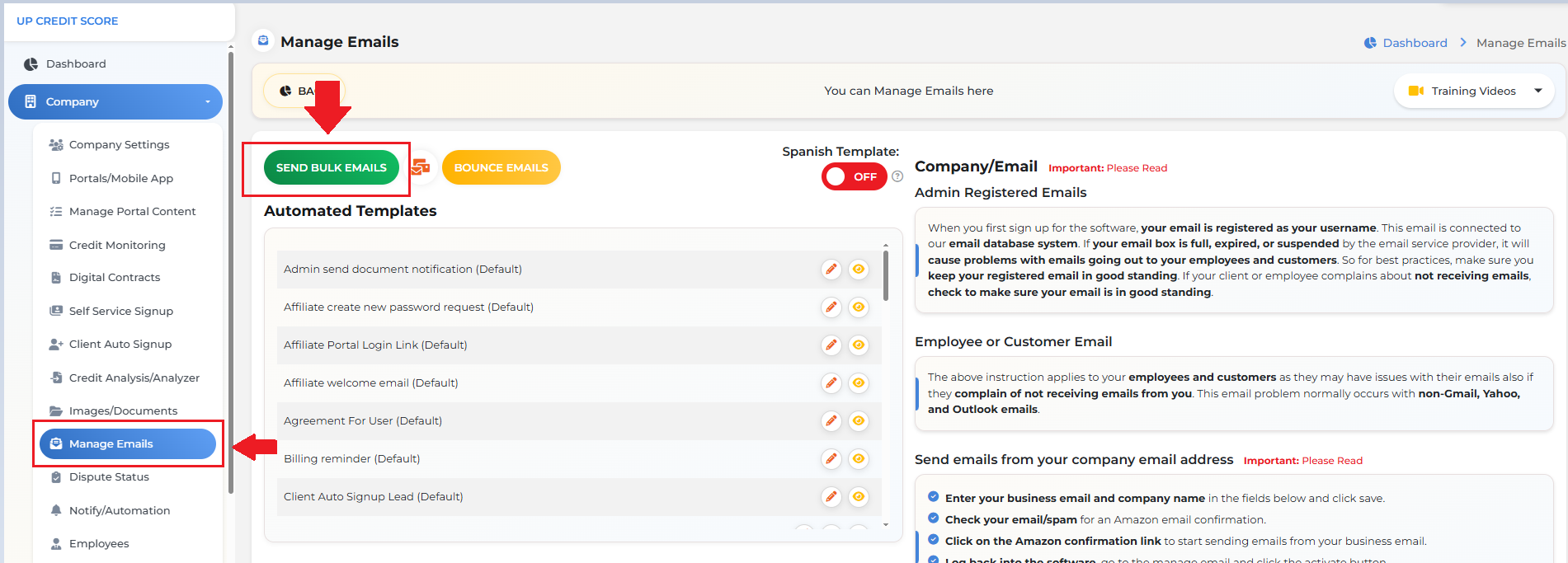
1. Go to Company > Manage Emails, then click on the Send Bulk Emails button.
2. Select the Dispute Authorization Signature email from the Manual Templates dropdown
3. Select the status of the customers you want to send this email to and then click on send bulk email.
Once your customer receives the email, they will see the Dispute Authorization Signature Form. They just need to enter their name, provide their E-Signature, and read the Authorization text and put a check on the box to agree. Once they’re done, they just need to click on “Submit Signature” to submit their signature.
📌You will be notified via email that a customer was able to submit their signature.
🔍Where to find this feature?
You can view and modify the Digital Authorization Signature email by going to Company > Manage Emails and under the Manual Templates section, you will find the Digital Authorization Signature email so you can view or edit the email template.
Once your customer submits their signature either through sending them a contract or the email. Their signature will be securely stored in the software and be displayed on the dispute letters you create.
All of the default dispute letters in the software have been updated with the [clientsignature] placeholder which is where the signature will show.
This placeholder is not automatically added to your manual letters, please add the placeholder to your letter templates for your customers signature to show.
The new Digital Authorization Signature update is designed to streamline your workflow and ensure every client has the proper permission on file—without requiring extra steps, new contracts, or repeated onboarding. Whether you’re managing a single client or sending bulk requests to your entire database, this feature keeps your process fast, compliant, and fully automated.
By adding the signature placeholder to your custom letters and keeping your templates updated, you’ll ensure that client signatures appear exactly where you need them, every time.
This update is all about saving time, reducing friction, and giving you full control over your authorization process.
If you’re ready to make your dispute workflow smoother and more organized, start using the Digital Authorization Signature feature today.
If you need help or have questions, our support team is always here to assist you.
Comments
0 comments
Article is closed for comments.